Windows 11 December 2025 Update Rolls Out With 16 Major New Features
16 quiet upgrades are landing in Windows 11 this December. Cleaner design, faster gaming, and a few surprises most users won’t expect.
 Admin
Admin
The final Patch Tuesday update of 2025 for Windows 11 will begin rolling out on December 9, bringing major design cleanups, stronger virtualization performance, and expanded AI features for Copilot+ PCs. The update also fixes persistent interface issues, makes Settings easier to navigate, and extends gaming improvements to more systems. Let’s explore what users can expect.
User Interface and Design Improvements
Windows Search and Start Menu Alignment
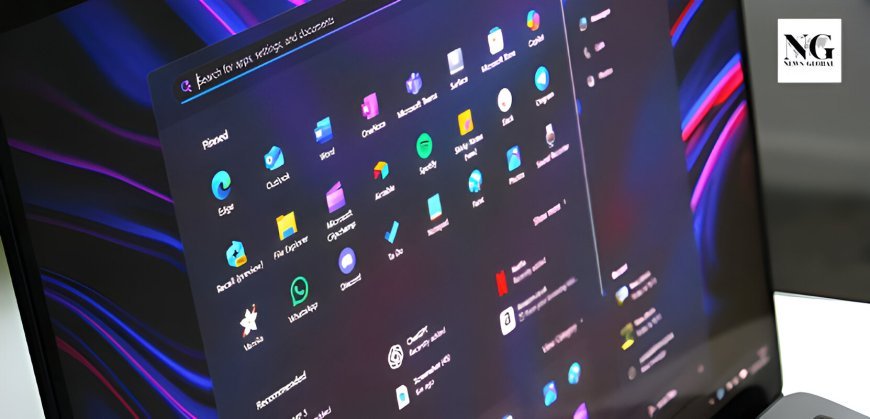
The update finally resolves design inconsistencies by matching the Windows Search panel height to the new Start menu design, creating a more cohesive visual experience across the operating system.
File Explorer Dark Mode Enhancements
Beyond surface-level changes, the File Explorer update deeply refines dark mode by applying a consistent dark theme across copy, move, and delete dialogs, progress bars, chart views, and confirmation windows. The same update also reshapes the context menu into a more structured layout that consolidates share, copy, and move actions into one organized interface, with availability expanding slowly.
Taskbar and Desktop Improvements
A new "Share with Copilot" feature appears in app thumbnails on the Taskbar, enabling quick conversations with Copilot Vision. Smoother animations enhance transitions when hovering and sliding between apps. For Windows Spotlight users, a "Next background" option allows faster wallpaper switching, while a new "Explore background" feature opens Bing pages with wallpaper information.
Settings App Restructuring
Device Information and About Page Redesign
The Settings home page gains a new "Device info" card displaying processor, storage, memory, and graphics specifications. The "About" page undergoes significant restructuring, replacing the top technical specification cards with a desktop background thumbnail and rename option.
"Device Specifications" becomes "Device info," and "Frequently Asked Questions" transforms into "Device insights," while "Windows Specifications" is renamed to "Windows info".
Mobile Devices Integration
Mobile device configuration now integrates directly into the Settings app at Settings > Bluetooth & devices > Mobile devices, allowing users to add, manage, and remove devices without opening separate windows.
Keyboard and Input Customization
New keyboard settings (Settings > Bluetooth & devices > Keyboard) provide control over character repeat delay and repeat rate, Copilot key remapping, and Print screen key functionality for the Snipping Tool. Text cursor settings (Settings > Accessibility > Text cursor) enable cursor blink rate adjustment.
System and Virtualization Features
Virtual Workspaces
The Advanced Settings section introduces a dedicated "Virtual Workspaces" page for managing virtualization features including Containers, Guarded Host, Virtual Machine Platform, Windows Hypervisor Platform, Windows Sandbox, Hyper-V components, and PowerShell modules. This consolidates virtualization management previously scattered across legacy Windows Features pages.
Drag Tray Control
Users can now disable the Drag Tray feature (the fly-out that appears when dragging files to the screen top) via Settings > System > Nearby Sharing.
Quick Machine Recovery Update
The Quick Machine Recovery feature streamlines its approach by renaming "Continue searching if a solution isn't found" to "Automatically check for solutions" and replacing separate settings with a single "Look for solutions" option set to "Once," preventing confusing solution-search loops.
Widgets and Accessibility Enhancements
Widgets Board Redesign
The Widgets dashboard separates "Widgets" from "Discover" boards using navigation pages and integrates settings directly rather than using overlays. New alerts display badge counts on the board icon, and users can set a default board.
Haptic Feedback for Digital Pens

Touch-enabled devices now support haptic feedback for digital pens, providing subtle vibrations when interacting with interface elements like close buttons, window snapping, and resizing.
Gaming and AI Features
Xbox Full Screen Experience Expansion
The Xbox Full Screen Experience extends beyond ASUS ROG Ally and Ally X to more handheld gaming devices, transforming the desktop into a console-like interface navigable with controllers. This experience saves approximately 2GB of memory by reducing system overhead. Users can enable it via Settings > Gaming > Full screen experience and toggle back to the regular desktop using Windows key + Tab.
Windows Studio Effects for External Cameras
Copilot+ PC users gain access to AI-powered camera enhancements for secondary cameras, USB webcams, and built-in rear cameras via Settings > Bluetooth & devices > Cameras, accessible through camera properties.
Click to Do Enhancement
The Click to Do context menu on Copilot+ PCs aligns actions (Copy, Save, Share, Open) at the top in a single row, includes a prompt box for quicker Copilot access, and automatically opens for large images or tables.
Key Implementation Notes
Microsoft employs Controlled Feature Rollout (CFR) technology for gradual feature distribution, meaning some features may take time to reach all users. Several advanced features require Copilot+ PCs with Neural Processing Units (NPU) capable of 40+ TOPS, BitLocker or Device Encryption, and Windows Hello enabled. Some features, like the Device info card in Home Settings, may appear only to United States users signed in with Microsoft accounts.
FAQs
When will the Windows 11 December 2025 update be available?
The final Patch Tuesday update of 2025 begins rolling out on December 9. The rollout happens in phases, so some systems may receive it on day one, while others may see it over the following weeks.
What improvements does File Explorer get?
Dark mode now applies properly across copy, move, delete dialogs, progress bars, charts, and confirmation windows. The right-click context menu is also more structured and easier to use.
What is the “Share with Copilot” feature on the taskbar?
This feature allows users to start quick conversations with Copilot Vision directly from app thumbnails on the taskbar, making image and content-based queries faster.
What is Quick Machine Recovery and what changed?
Quick Machine Recovery simplifies system recovery by replacing multiple confusing options with a single automatic solution-search setting, reducing recovery loop issues.
What is “Click to Do” on Copilot+ PCs?
Click to Do is a smarter context menu that aligns common actions like Copy, Save, Share, and Open at the top. It also adds a Copilot prompt box for quick AI assistance.